 Fortis Settlement Solutions
Nurse Portal Login Instructions
These steps will guide you through logging into the system and accessing the Nurse Portal to view your assigned cases.
Accessing the Login Page
- Open a web browser (Chrome, Edge, Firefox, etc.).
- Navigate to the login address:
https://www.fortismsp.com/login - Enter your login credentials in the designated fields.

Password Reset If Needed
- Click on the “Lost your password?” link.
- Enter your @fortismsp.com email address on the new page.
- Click “Get New Password.”
- Check your email for a link to change your password.
Note: If you are having trouble logging in, ensure you are using the correct credentials.
Navigating to the Nurse Portal
- Click on “PORTAL” located in the upper right-hand corner of the Fortis home page.
- Next, click on “Nurse Access.”

Troubleshooting: If you cannot access the Nurse Access page, you may not be fully logged in yet. Return to the login and verify your status.
Verification and Case Access
To verify your identity and access your case list:
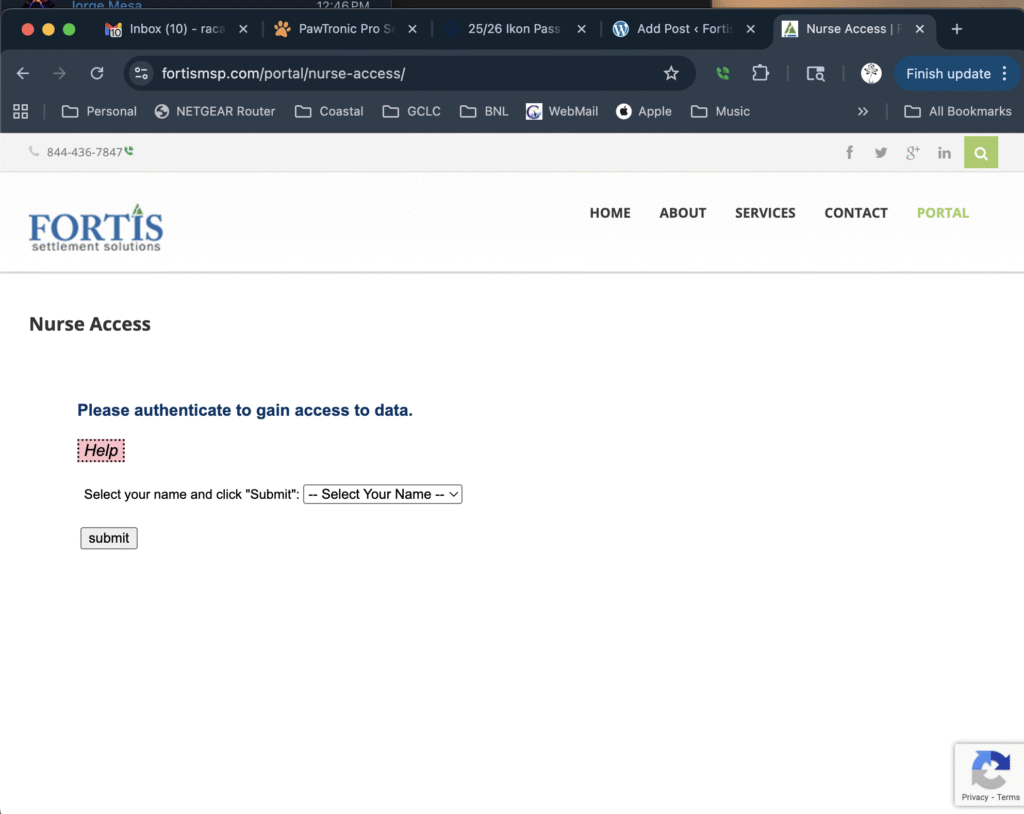
- In the field labeled “Select Your Name,” choose your name from the dropdown list.
- Click “Submit.”
- If your name is missing from the list, please contact Stefanie for correction.
- Check your email for a verification PIN number.
- Enter the PIN number into the “VERIFY” box and click “Submit.”
- Important: The PIN is time-sensitive and will time out after a few minutes. If the PIN expires, you must go back and click on your name again to request a new one.
Upon successful verification, you will be taken directly to your list of assigned cases.